Million Point Challenge — Premium Classroom Quiz Game Builder
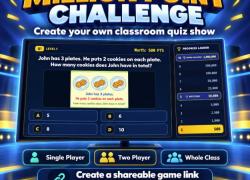
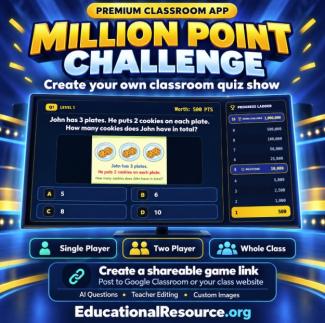
Turn your next lesson review into a classroom quiz show! Million Point Challenge lets teachers create customized games based on a grade level, subject, learning standard, or topic. Generate questions with AI, then edit the questions, answer choices, and explanations to fit your students.
Play single player, compete in two-player mode, or display the game on a classroom projector or screen so the whole class can join the challenge. Students answer multiple-choice questions, climb the point ladder, and use classroom lifelines such as 50/50, Ask the Class, and Switch Question.
Customize your game with:
- 10 or 15 questions with increasing difficulty.
- AI-generated or teacher-written titles and questions.
- Optional AI images or your own uploaded visuals.
- Holiday and seasonal themes.
- Points or stars for scoring.
- Editable answer explanations to reinforce learning.
- Preview and draft-saving options before publishing.
When your game is ready, publish it to create a shareable game link. Post the link in Google Classroom or on your class website so students can easily access your activity.
Use Million Point Challenge for lesson review, independent practice, partner challenges, or whole-class participation.
Find this premium app and explore more educator apps, classroom tools, and teaching resources at EducationalResource.org.
Materials Needed
- Access to the Million Point Challenge premium app on EducationalResource.org.
- An internet-connected computer, Chromebook, or tablet with a web browser.
- A grade level, standard, or topic for creating your game.
- A projector, classroom screen, or interactive display for whole-class play.
- Optional uploaded images to illustrate questions.
- Optional paper, pencils, or student whiteboards for showing work.
- Students can share a device for two-player mode. Whole-class play can use one teacher device connected to the classroom display.
Teacher Tips
- Start with a specific standard or topic so the generated questions match your lesson. Include additional instructions when you want certain vocabulary, problem types, or examples.
- Review every question, correct answer, and explanation before publishing. Adjust wording and difficulty for your students, and add images when they help explain the question.
- Preview your game before class. During whole-class play, ask students to explain their thinking before revealing the answer. Use the explanation afterward to discuss strategies and clear up misunderstandings.
- Post the published game link in Google Classroom or on your class website for easy access.
Classroom Ideas
- Whole-Class Review: Project the game and have students discuss each question before choosing an answer.
- Partner Challenge: Use two-player mode for friendly competition. Ask partners to explain how they chose their answers.
- Independent Practice: Share the game link for students to play during centers, review time, or at home.
- Show Your Thinking: Have students solve each question on a whiteboard before revealing the correct answer.
- Seasonal Review: Choose a holiday or seasonal theme while keeping the questions focused on your learning goals.
- Reteaching: Build a game around a skill students need to practice, then pause to discuss the answer explanations.